
OnSync – CALPADS File Automation
Steps to syncing your CALPADS files to OnDataSuite using OnSync
What is OnSync for CALPADS?
OnSync is a feature within OnDataSuite that automates the loading of CALPADS files into OnPoint.
OnSync does not connect directly to your SIS or any other data provider. Instead, districts place their CALPADS files into a secure OnSync folder provided by OnDataSuite. OnSync then automatically checks the folder overnight and processes any files found.
Web upload functionality remains available during the day, so users may continue uploading files manually at any time.
Initial OnSync Setup
To begin using OnSync for CALPADS, OnDataSuite will complete a secure setup process for your district.
Security Setup Requirements
OnDataSuite has security measures in place to help keep district data safe.
Before OnSync can be activated:
- OnDataSuite must whitelist the IP address of the computer your district will use for OnSync access.
- Once the IP address has been whitelisted, OnDataSuite will provide your district with:
- Your OnSync account information
- Access details for your secure OnSync folder
If you do not yet have your OnSync account information, please contact OnDataSuite Support.
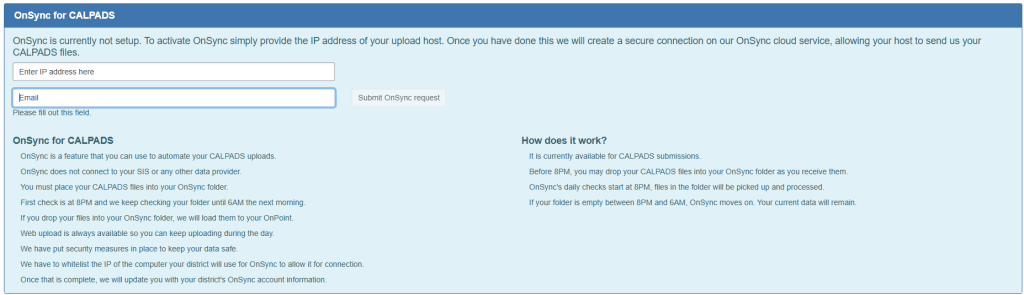
How OnSync for CALPADS Works
OnSync is currently available for CALPADS submissions.
Daily File Upload Process
- Before 8:00 PM, place your CALPADS files into your district’s OnSync folder.
- Beginning at 8:00 PM, OnSync starts checking the folder for files.
- If files are found, they are automatically picked up and processed into OnPoint.
- OnSync continues checking the folder periodically throughout the night until 6:00 AM.
If your folder is empty during the nightly processing window, OnSync simply moves on and your current data remains unchanged.
Important Notes
- OnSync only processes files placed into the secure OnSync folder.
- OnSync does not retrieve files from CALPADS, your SIS, or other third-party systems.
- Files may continue to be uploaded manually through the web upload process during the day.
- For best results, districts should place all CALPADS files into the OnSync folder prior to 8:00 PM.
Overnight Processing Schedule
| Time | Activity |
|---|---|
| Before 8:00 PM | District places CALPADS files into OnSync folder |
| 8:00 PM | OnSync begins nightly folder checks |
| 8:00 PM – 6:00 AM | OnSync continues checking for and processing files |
| After Processing | Files are loaded into OnPoint |
Troubleshooting OnSync for CALPADS
Files Were Not Processed
If your files were not processed overnight:
- Verify that the files were placed in the correct OnSync folder.
- Confirm the files were uploaded before the nightly processing window ended at 6:00 AM.
- Make sure your district’s IP address has been whitelisted by OnDataSuite.
- Verify that your district has received valid OnSync account credentials.
If issues continue, contact OnDataSuite Support for assistance.
Security and Data Protection
OnDataSuite uses secure access controls and IP whitelisting to help protect district data during the OnSync process.
Only approved district systems and authorized users are allowed access to the OnSync environment.