
How can you custom build a report and data visualizations from the data in your OnDataSuite?
After beginning in the Dashboard, choose the type of data that you want to analyze and navigate there.
Step 1
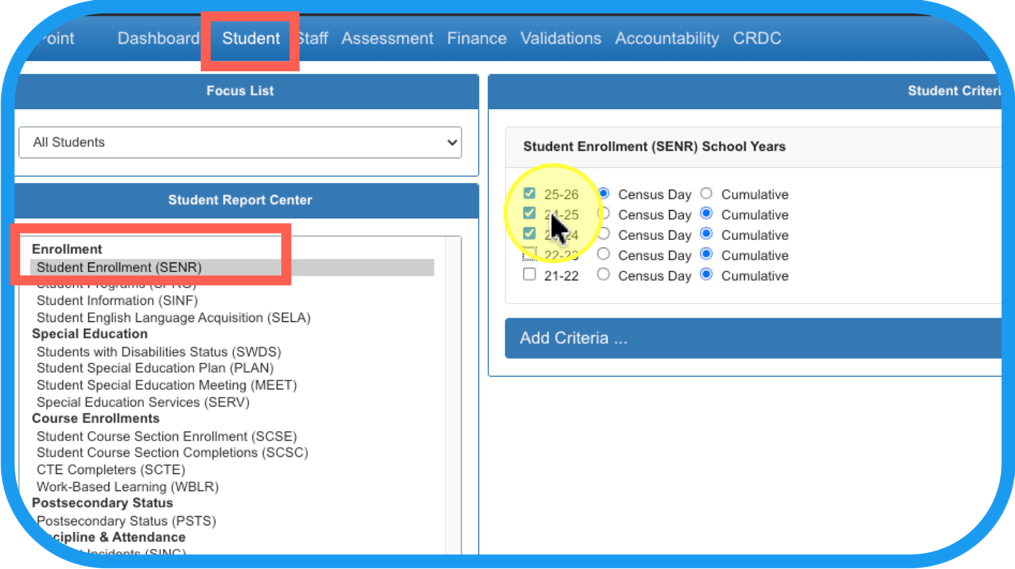
Example: Click Student > Student Enrollment (SENR) > Academic Year Selection and type of file
Step 2
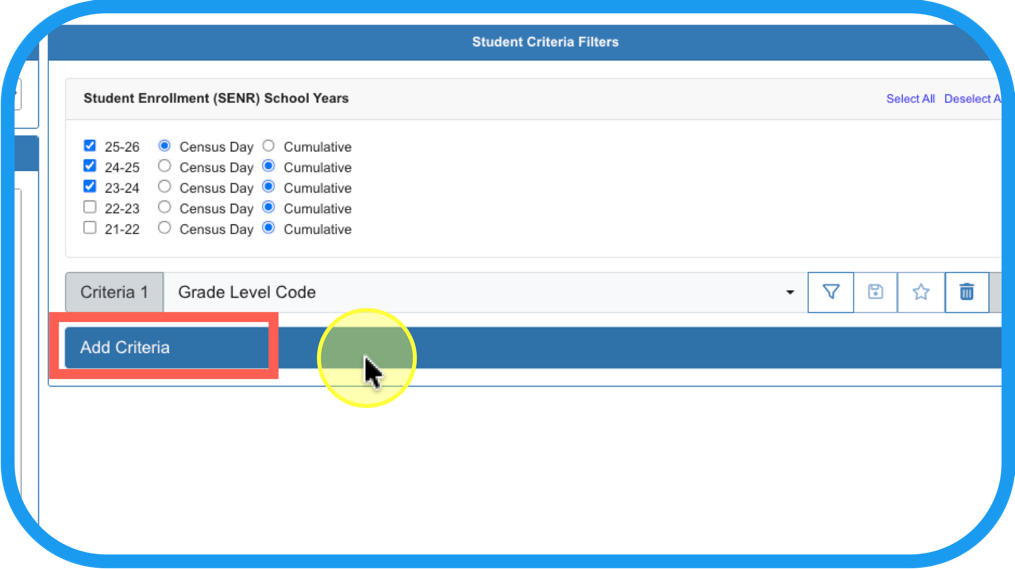
Choose criteria for column headers Ex. Grade Level Code
Step 3
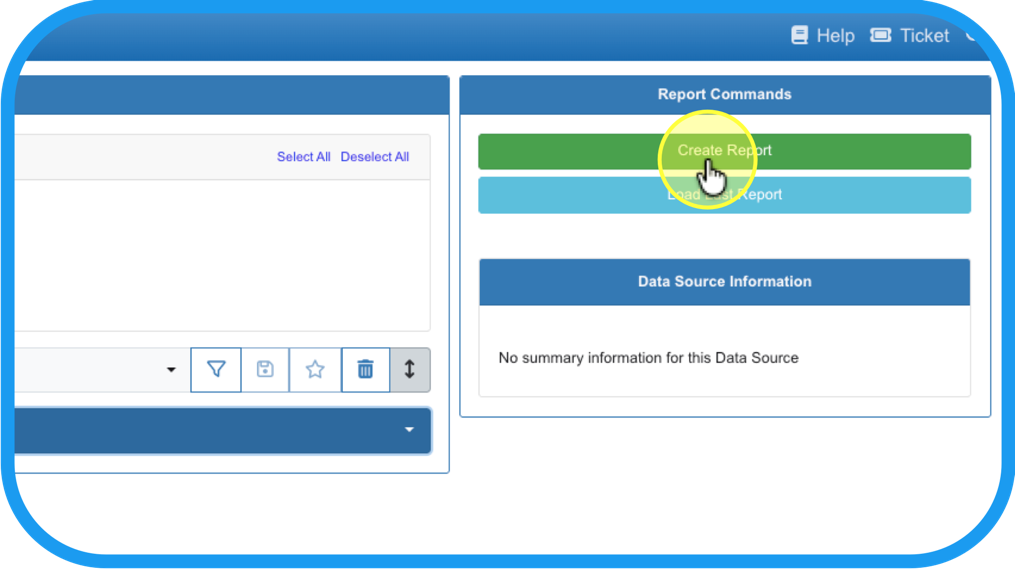
After you Create the Report…
Step 4
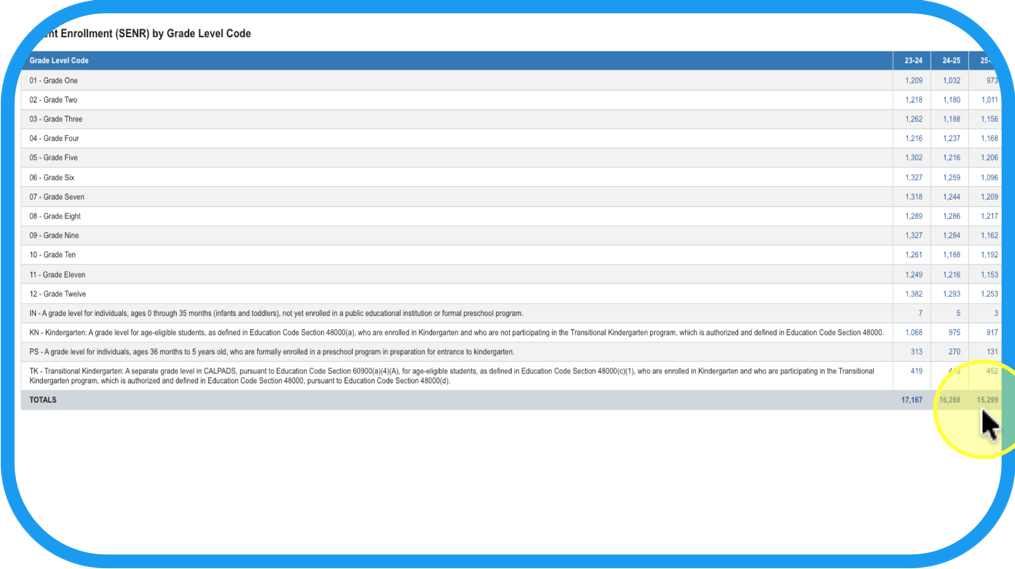
you get a table with the aggregated values of that criteria (for drill down).
Step 5
Choose All Students to view by category, or filter to a Focus List.
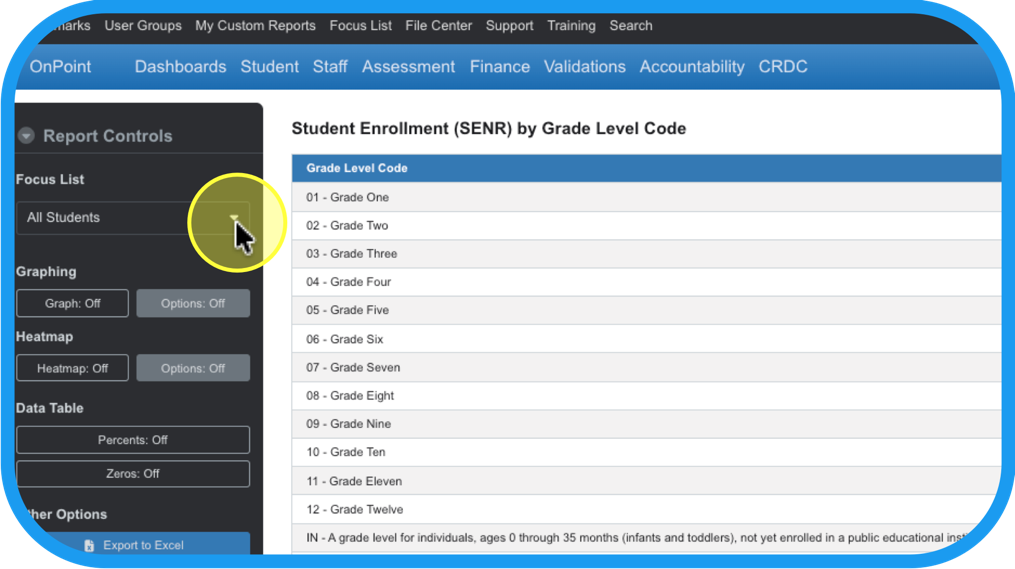
Step 6
In Report Controls, turn on Graphing and Options to make adjustments.
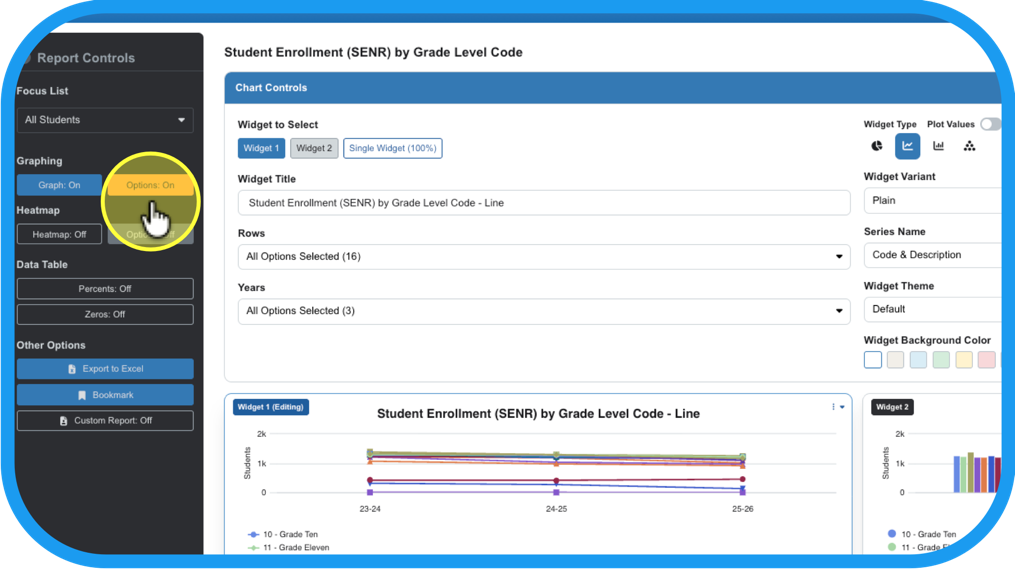
Step 7
Click on the widget (graphing chart) that you want to adjust.
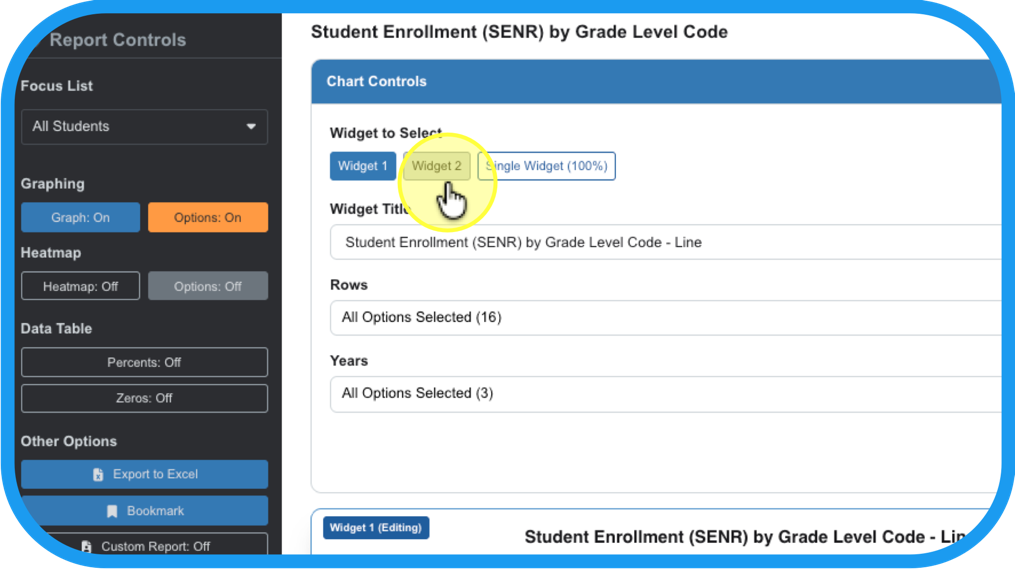
Step 8
Make changes in the structure of the charts and graphs.
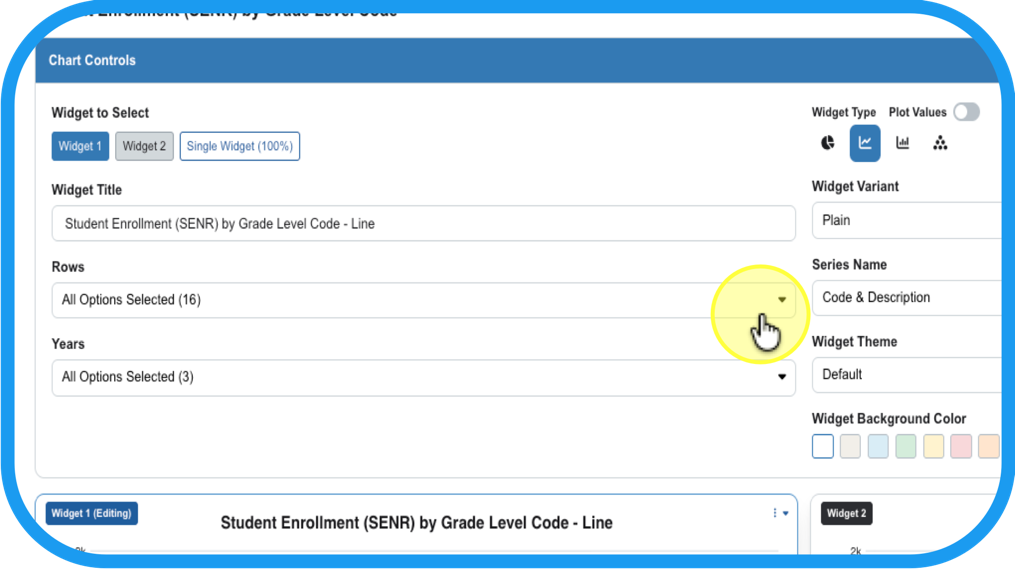
Step 9
Such as: What criteria to use for Rows (y-axis),…
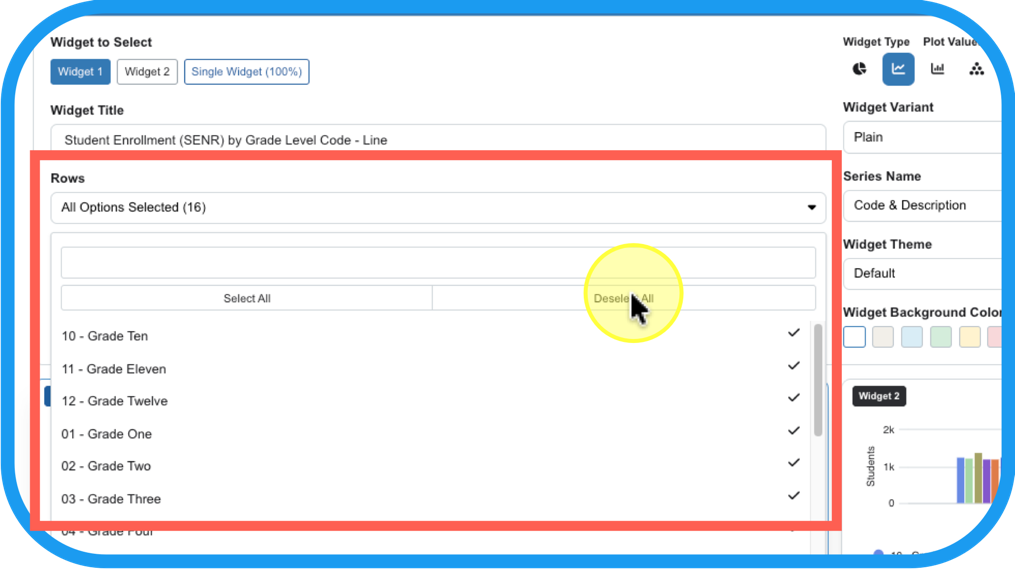
Step 10
and what criteria to use for Years (x-axis),…
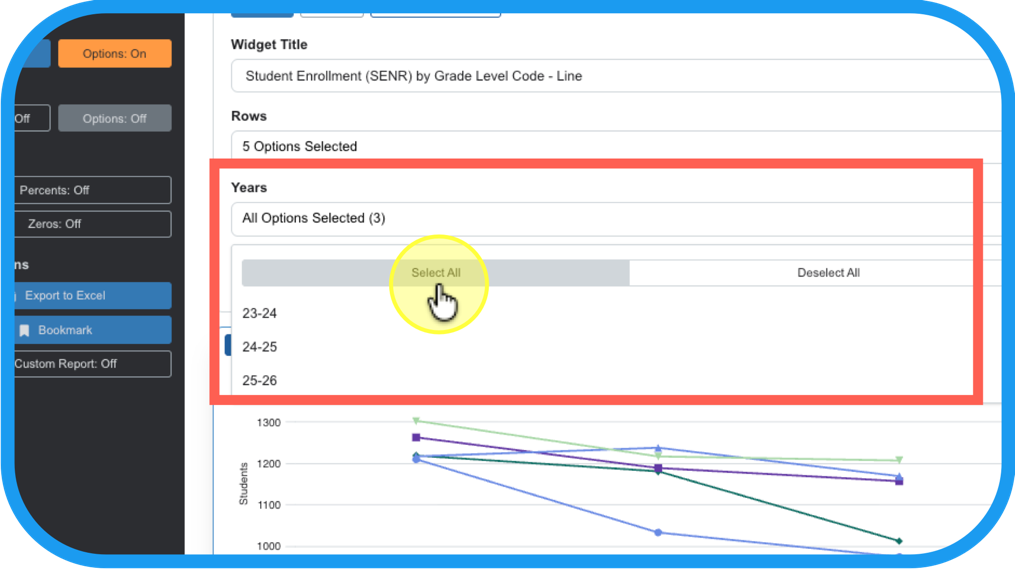
Step 11
swap out the x and y axes by selecting inverse on the Widget Variant,…
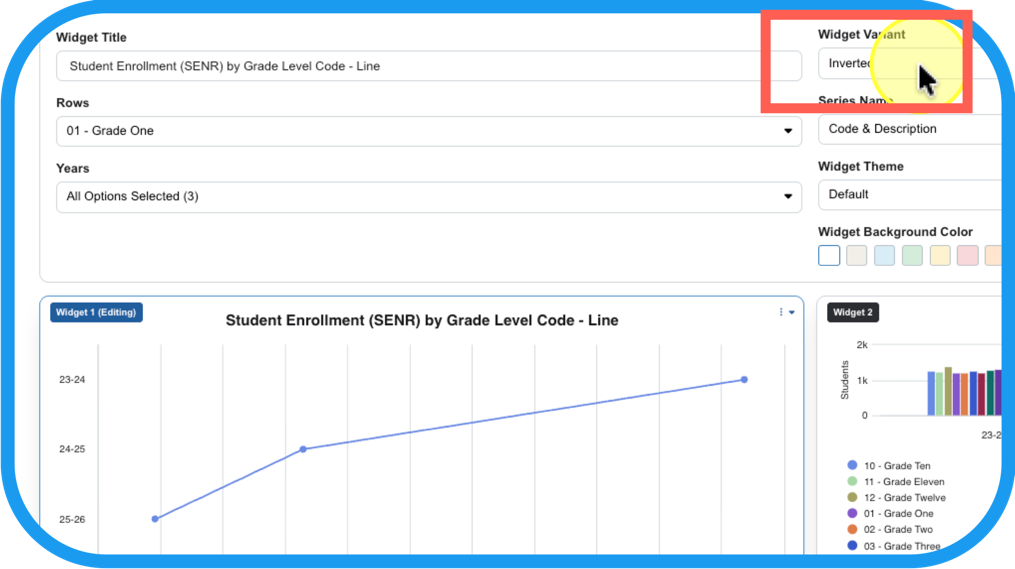
Step 12
And/or change the type of chart in the Widget Type.
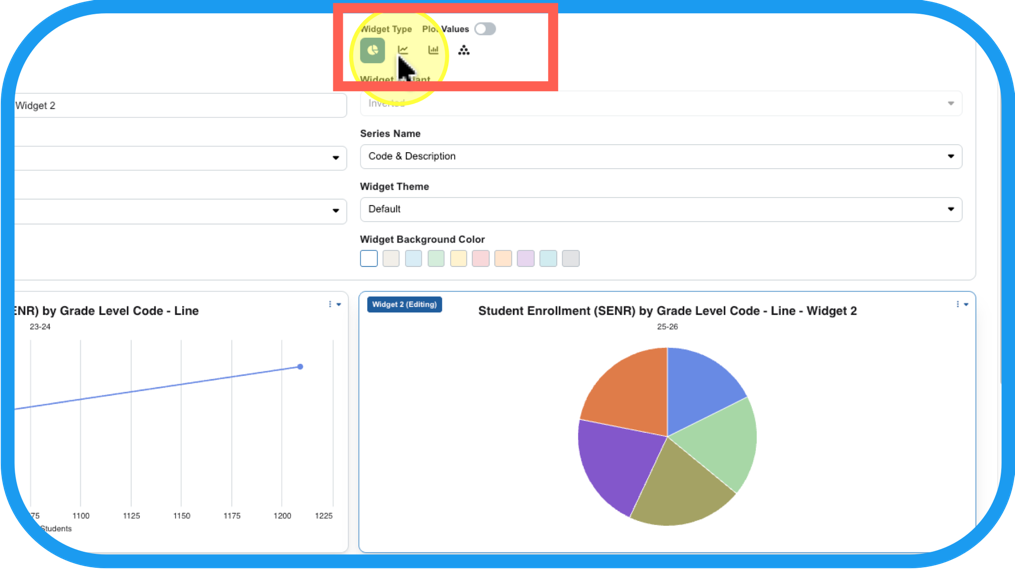
Step 13
Make changes in the details of the charts and graphs. Such as theme, color, …
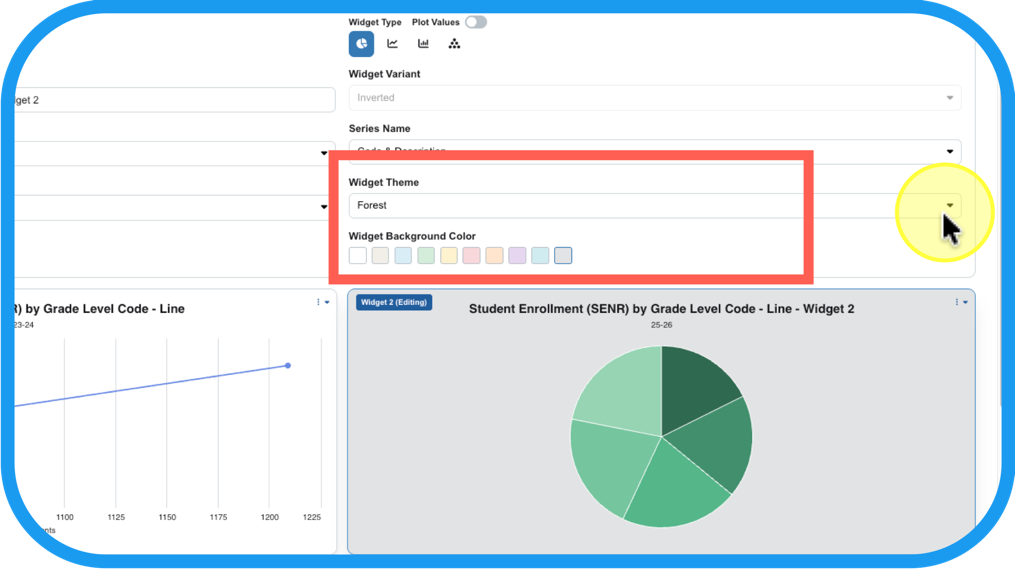
Step 14
description of the data that shows in the tooltip, …
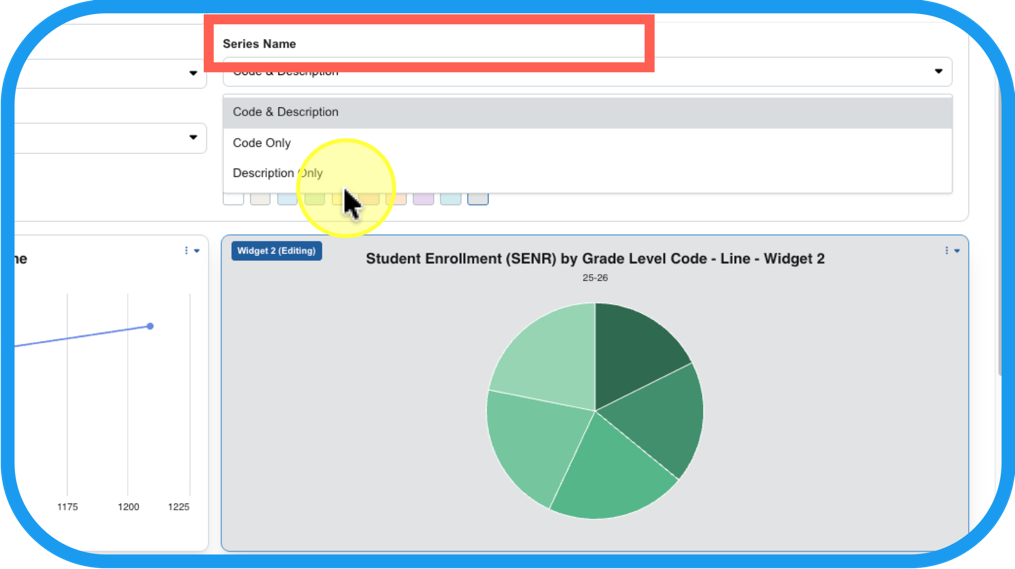
Step 15
and the title of your chart.
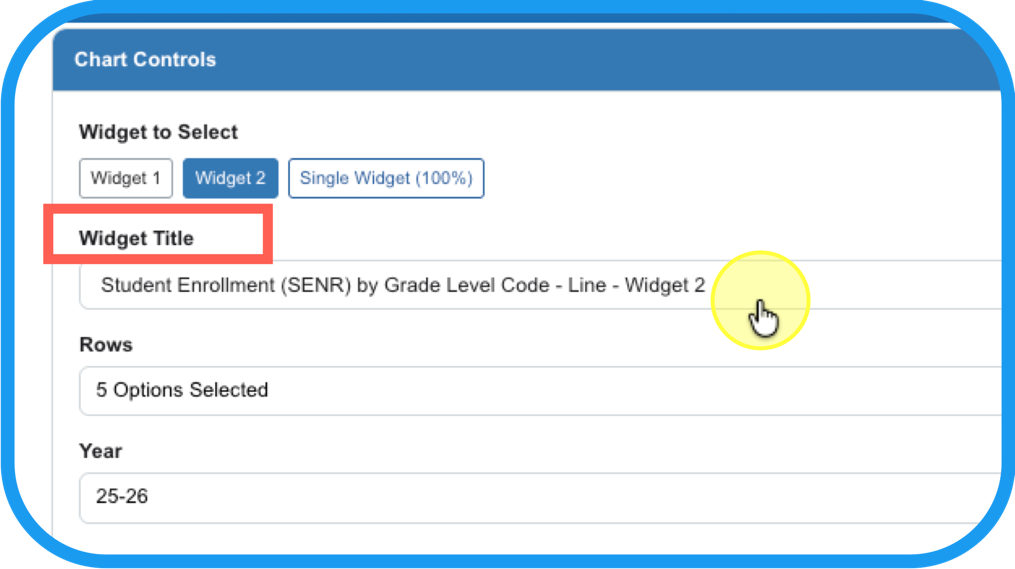
Additionally, you can you can convert the data table from Step 4, into a heatmap. This can assist you with identifying patterns of extreme highs and lows using a gradient color scale.
Step 16
Turn on Heatmap.
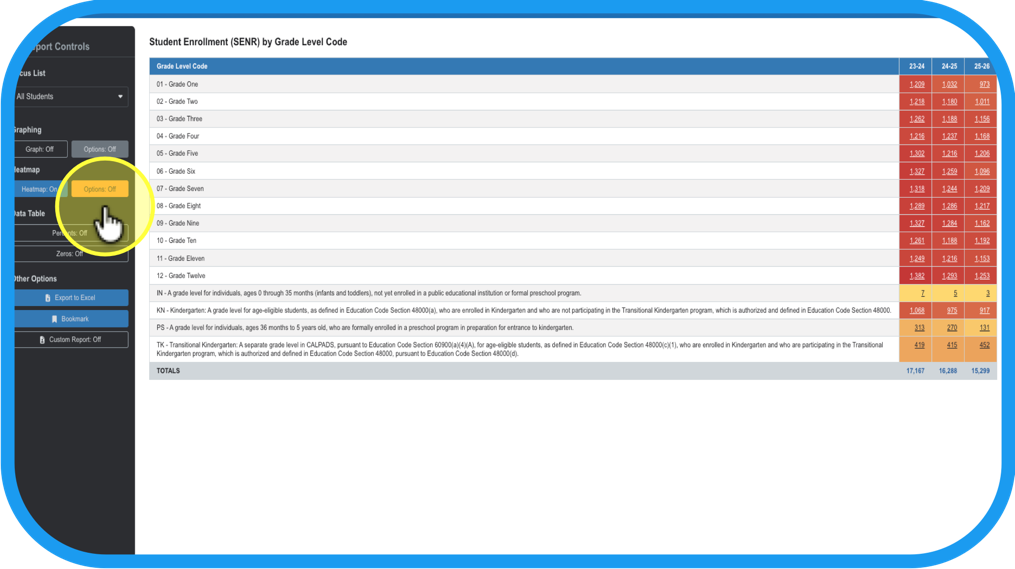
Step 17
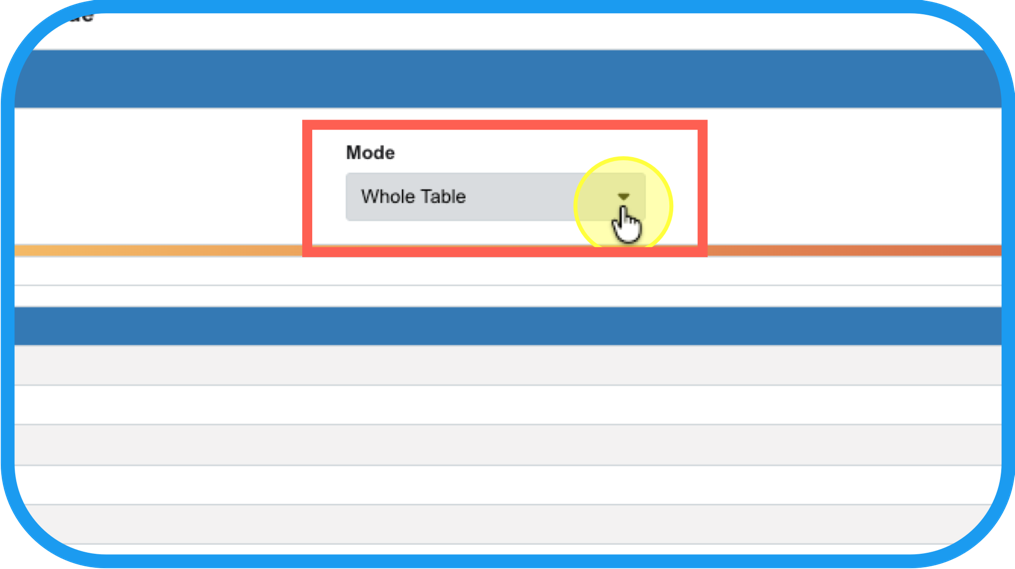
Adjust the details of the heatmap by…
Step 18
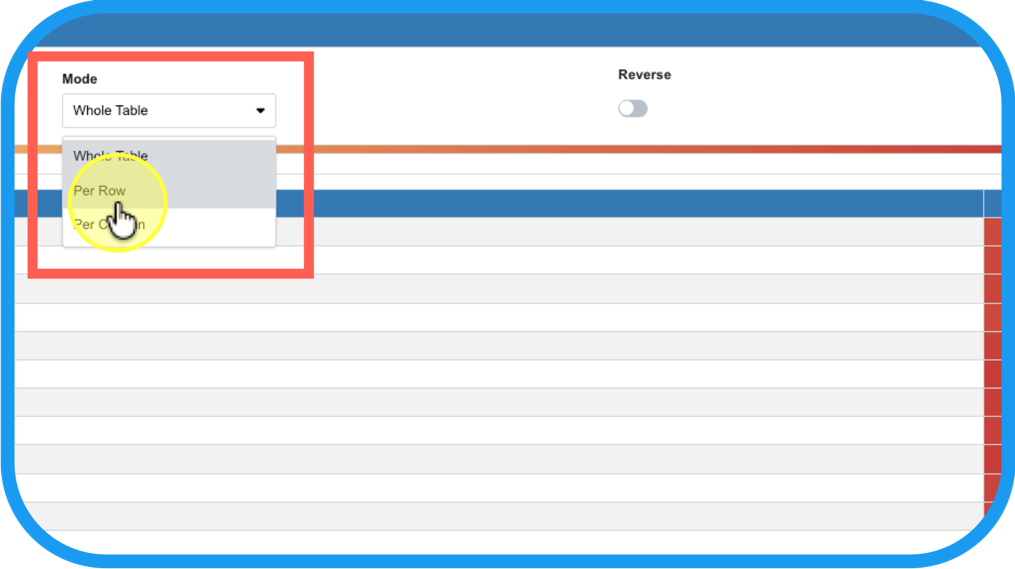
changing the color gradient focus; Ex. across rows (criteria chosen in Step 9), …
Step 19
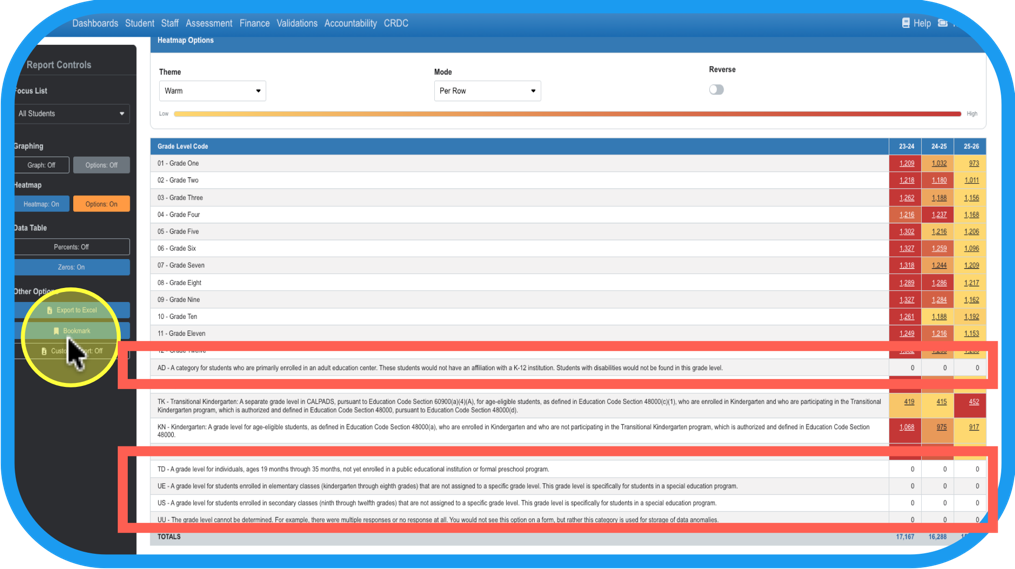
or by adding back in the zeros (criteria are omitted by default if they equal 0)
Step 20
Turn on the charts (graphs), and the heatmap for a full picture.
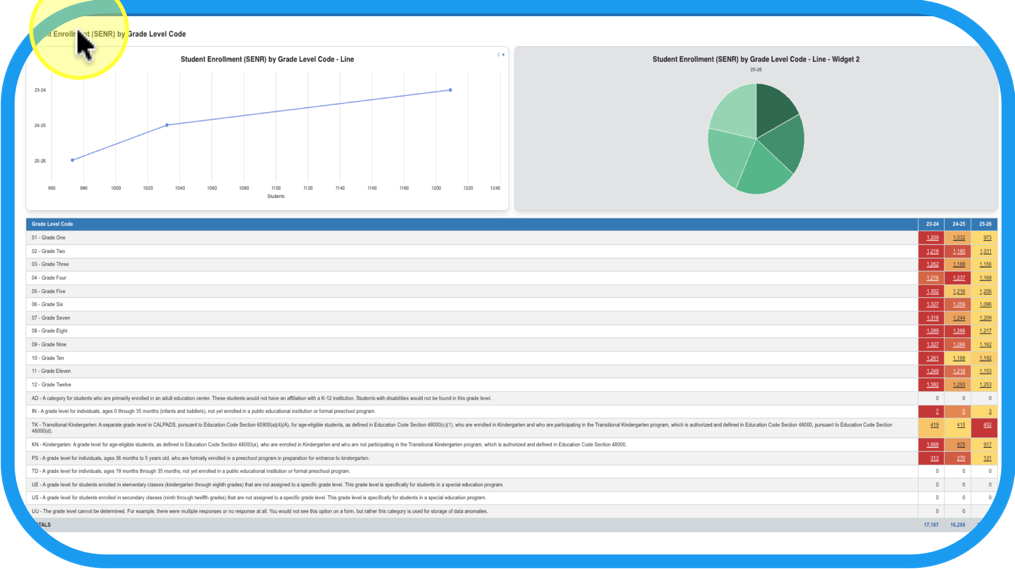
**ProTIP: Your OnDataSuite will save your last settings for future use; i.e. at a future date, repeat Steps 1, 2, and 3 and your OnDataSuite will give you Step 20.