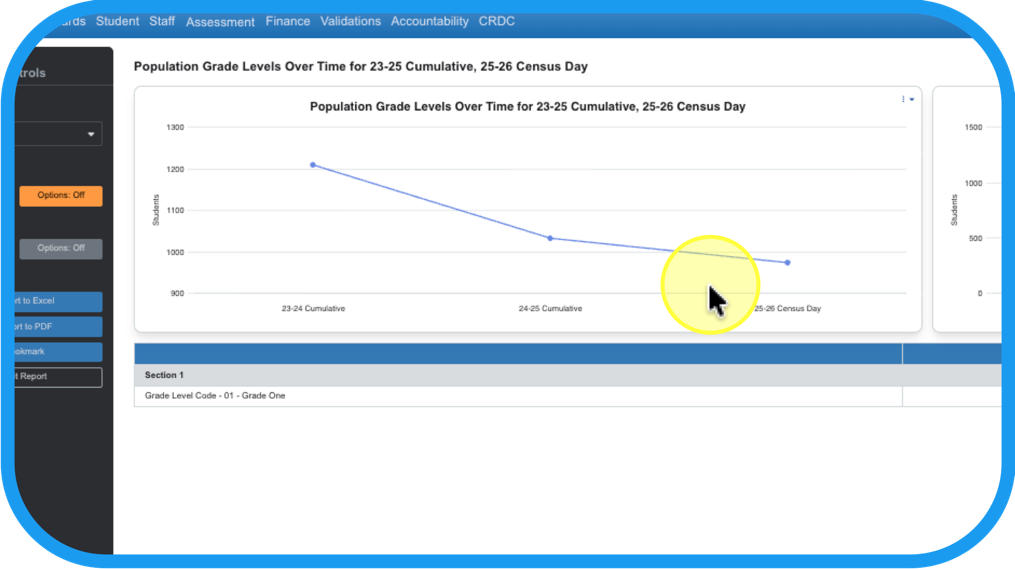
How can you build and share reports and data visualizations using the data in your OnDataSuite?
After beginning in the Dashboard, choose the type of data that you want to analyze and navigate there.
Step 1
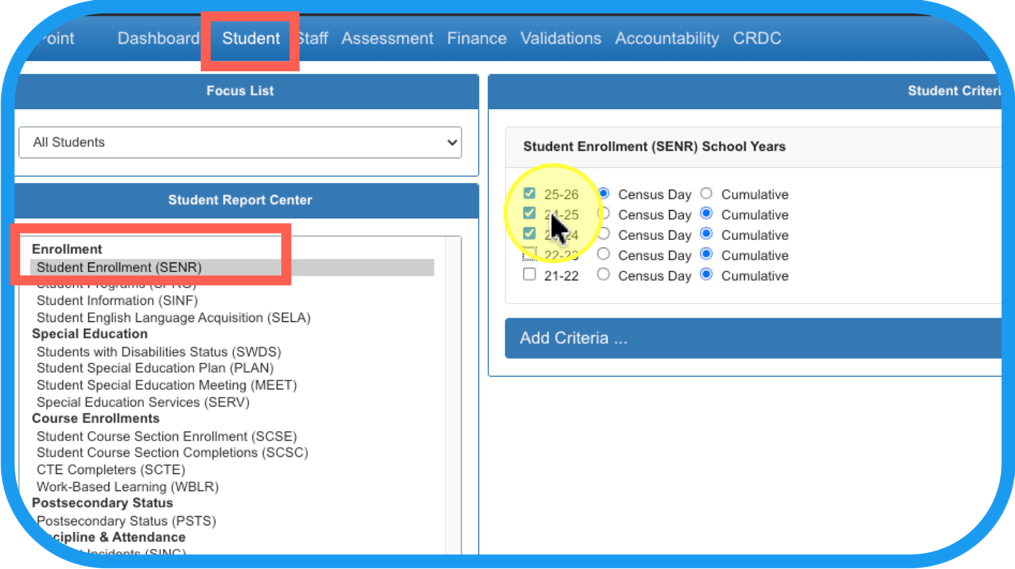
Example: Click Student > Student Enrollment (SENR) > Academic Year Selection and type of file
Step 2
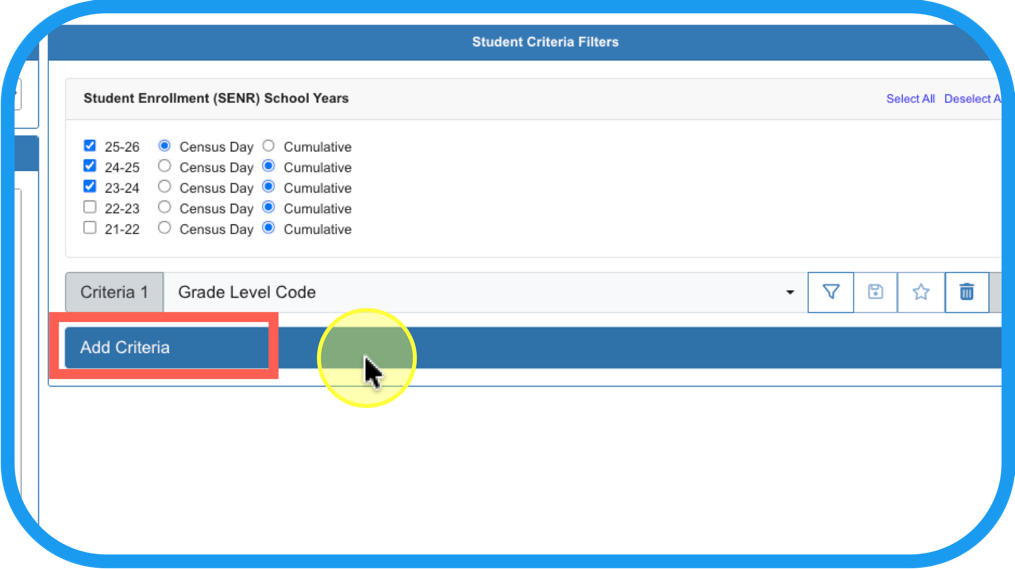
Choose criteria for column headers Ex. Grade Level Code
Step 3
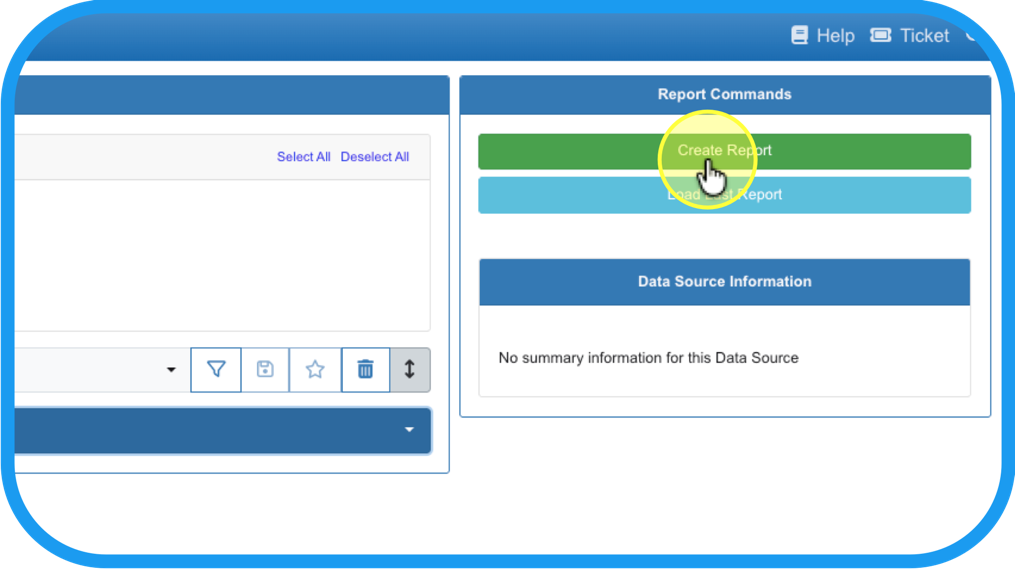
After you Create the Report…
Step 4
you get a table with the aggregated values of that criteria (for drill down).
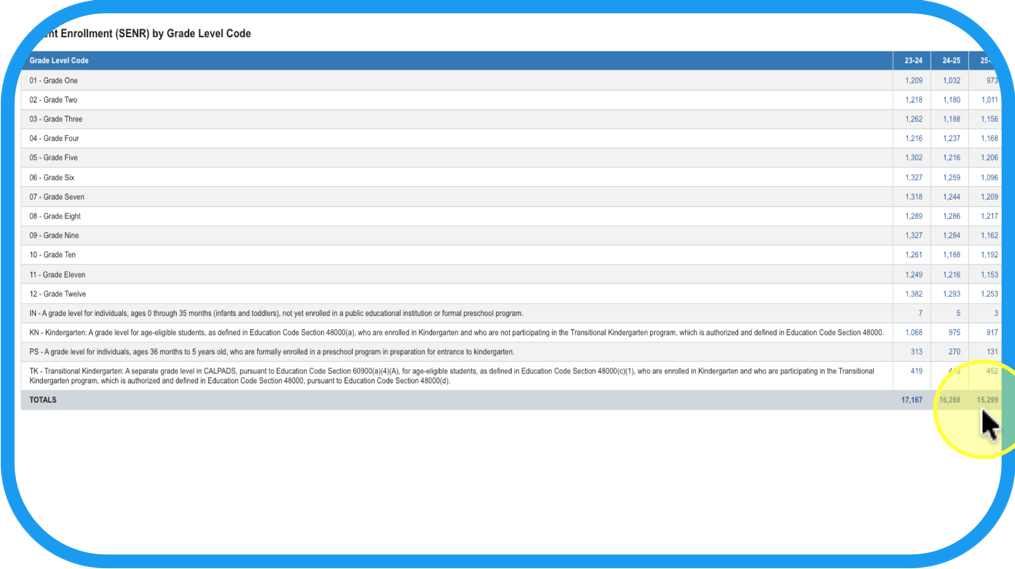
Now that you have pulled the data, create your own personal Custom Report.
Step 5
Turn Custom Report on.
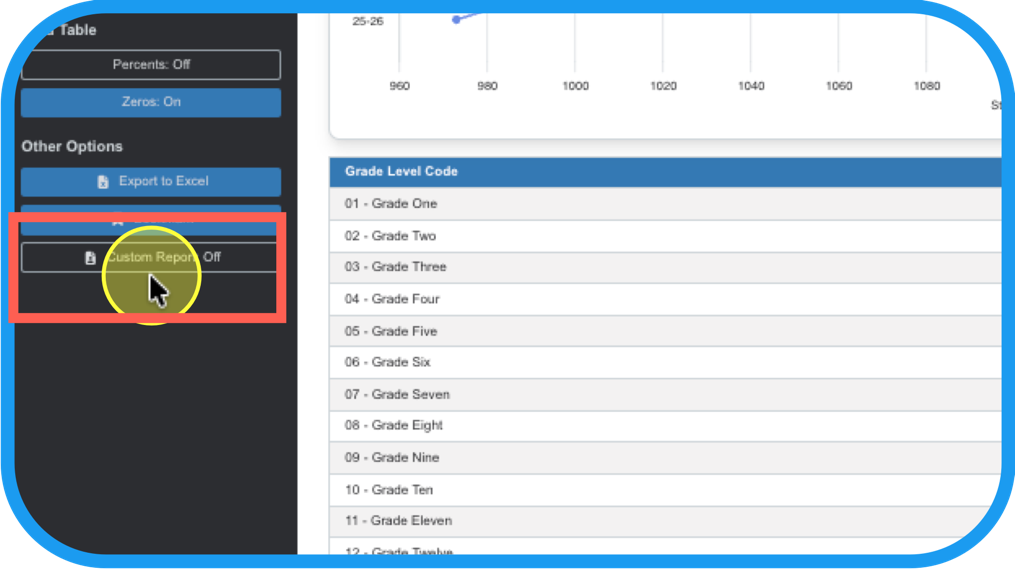
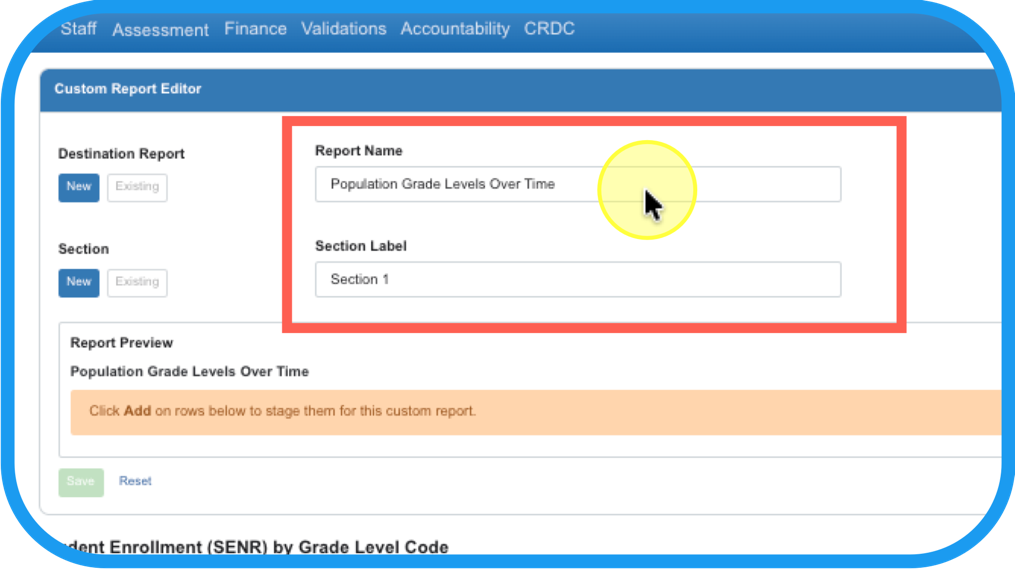
Step 6
Name the Report and label the Section.
Step 7
The criteria chosen in Step 2 will be listed. Add what you want in your report.
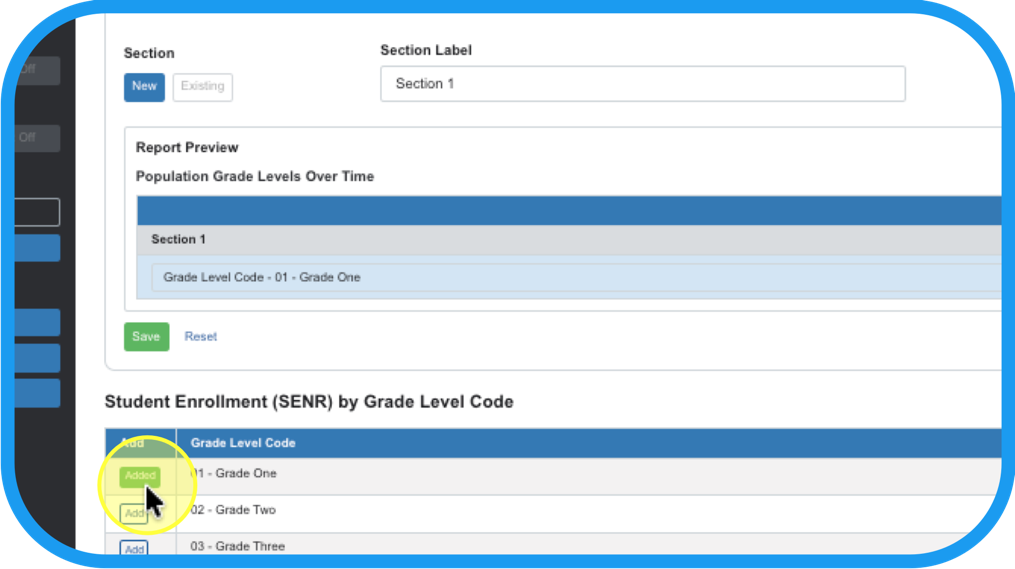
Step 8
Open the custom report.
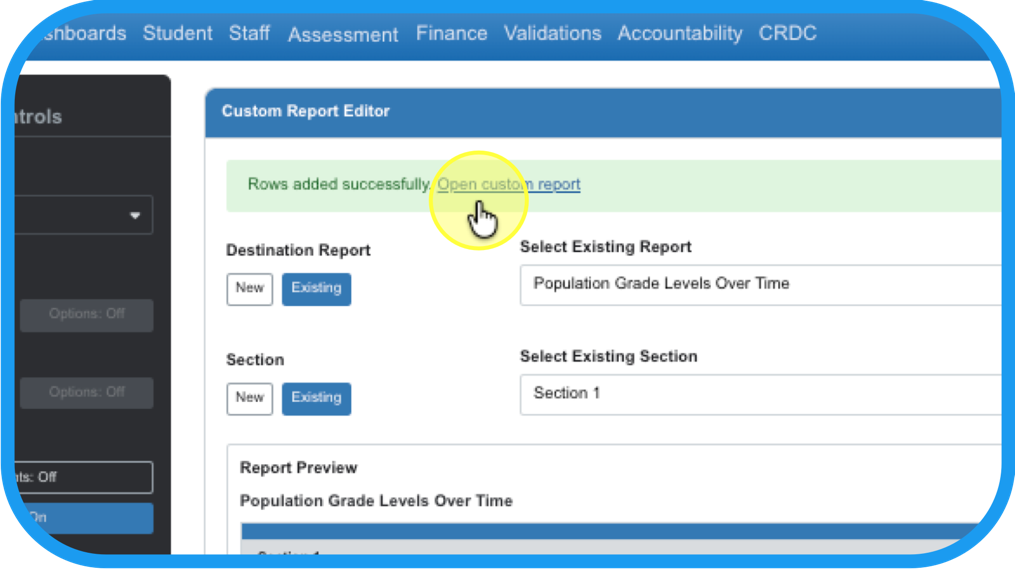
Step 9
Adjust charts the same as in Ad hoc reports, See: Ad Hoc Reports’ Data Visualization Tool
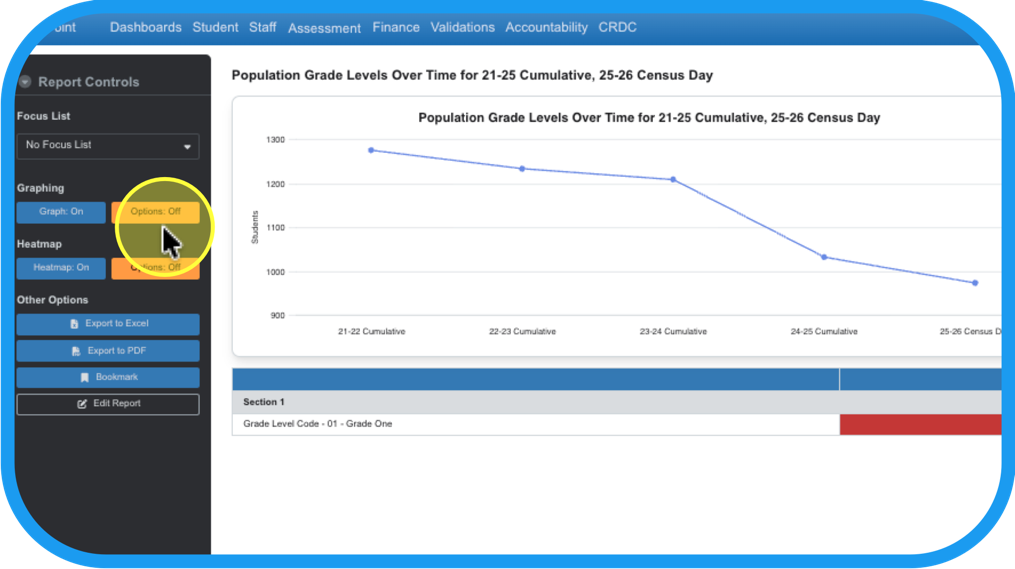
See Article for detailed steps: Ad Hoc Reports’ Data Visualization Tool
Step 10
Add or hide more years to the data table (or heat map) on the fly.
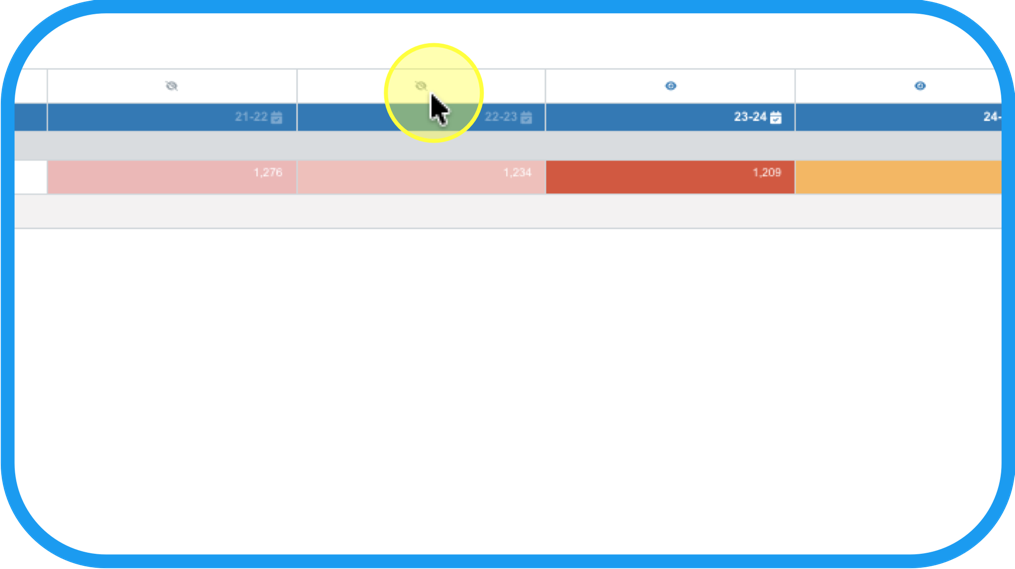
Step 11
There is an option to add Total Row. You can duplicate and move it to create subtotals.
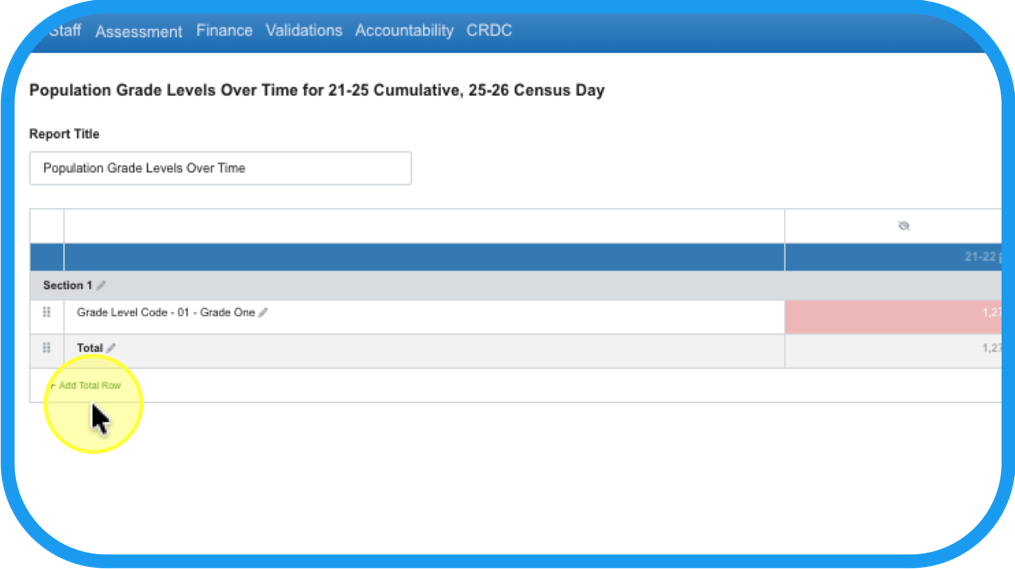
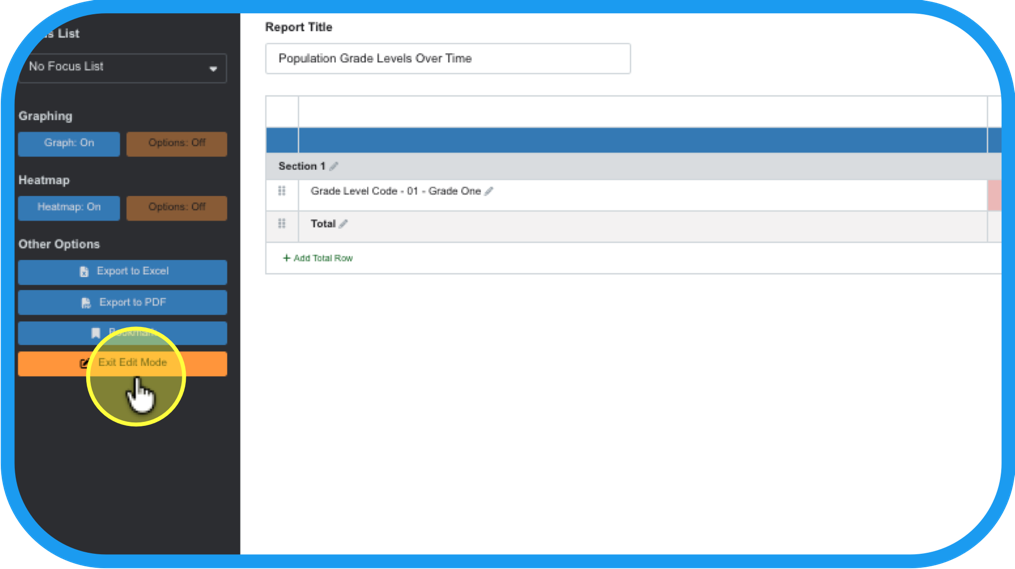
Step 12
When editing has been finished, Exit Edit Mode.
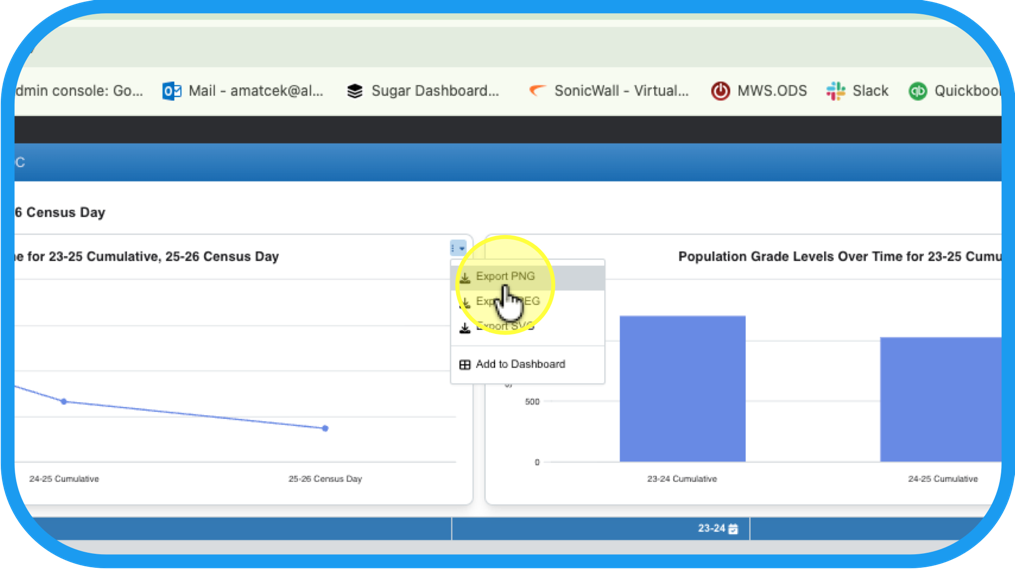
Step 13
Export a png to share one of the charts as a hand out or in a presentation.
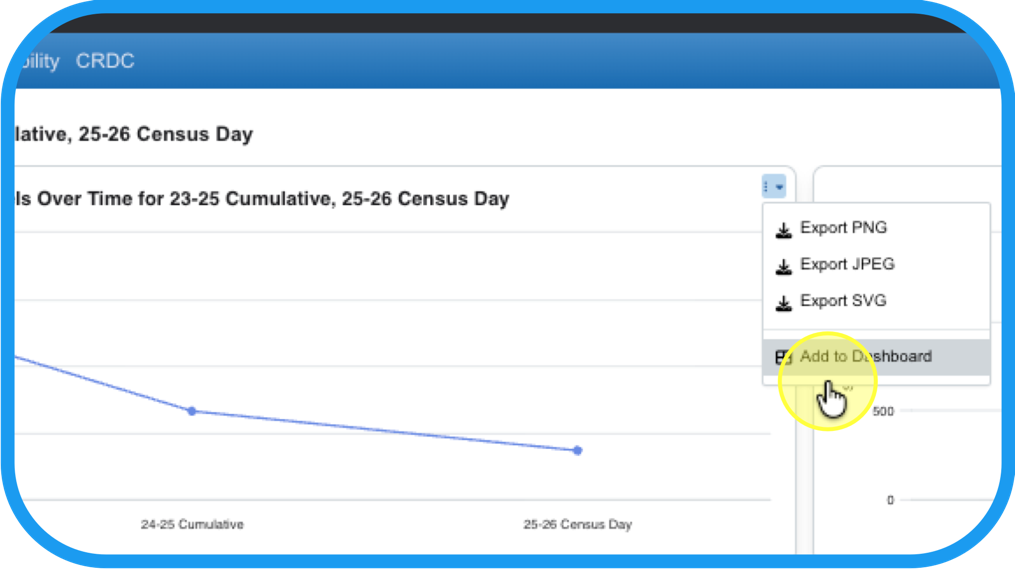
Step 14
Add the charts to your Dashboard to keep it handy and use it alongside other charts.
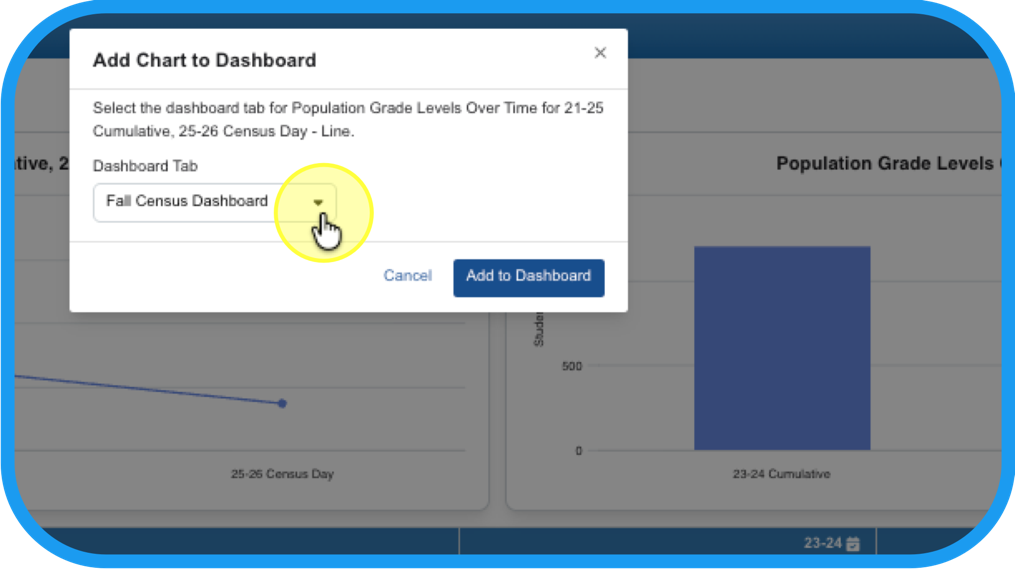
Step 15
Organize it by sending it to the appropriate tab in your My Dashboards.
Step 16
It will be located in your MyDashboards as a widget.
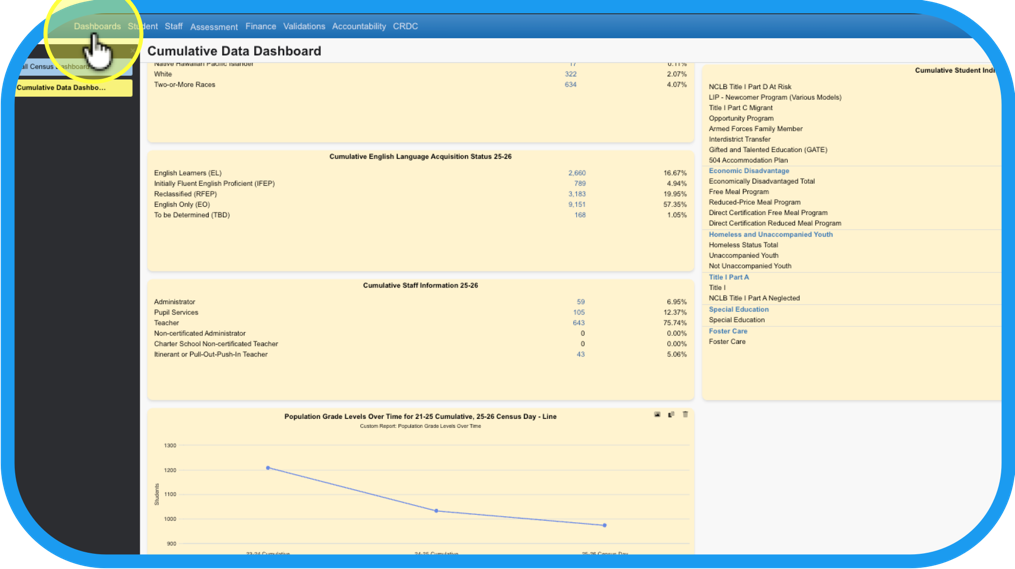
Step 17
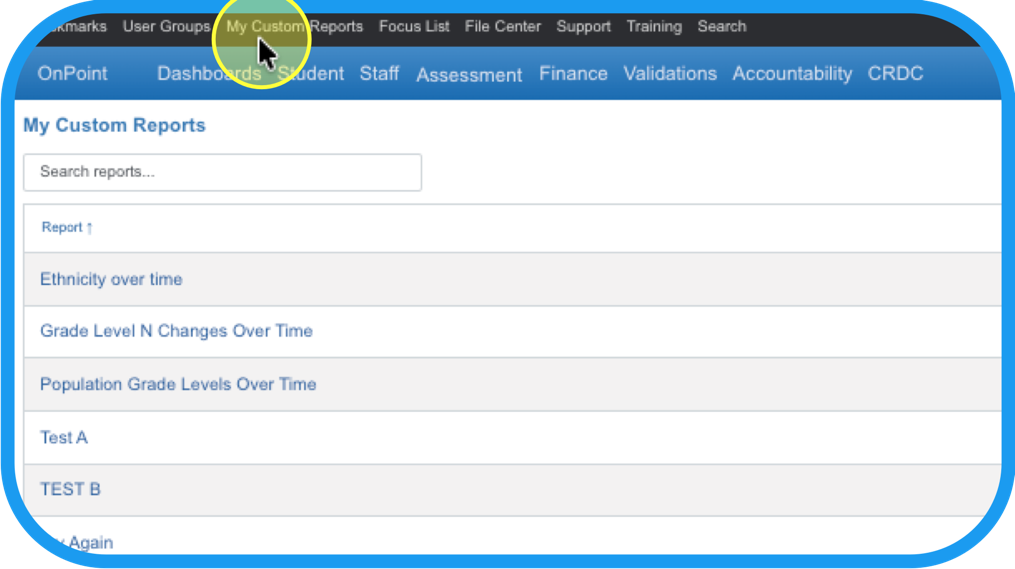
Click on My Custom Reports and the find the custom reports you have made.
Step 18
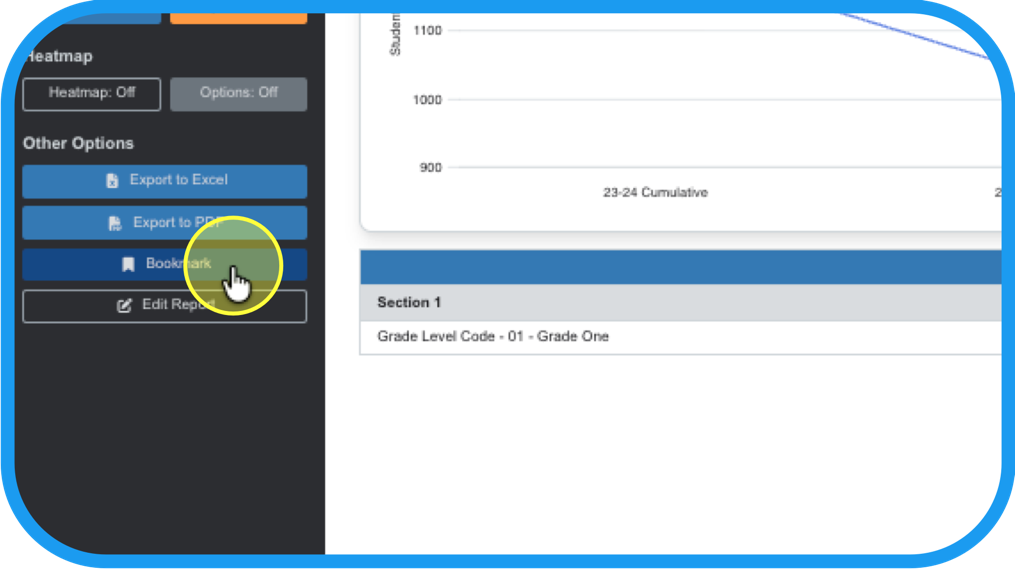
Share the report by returning back to it; making a bookmark…
Step 19
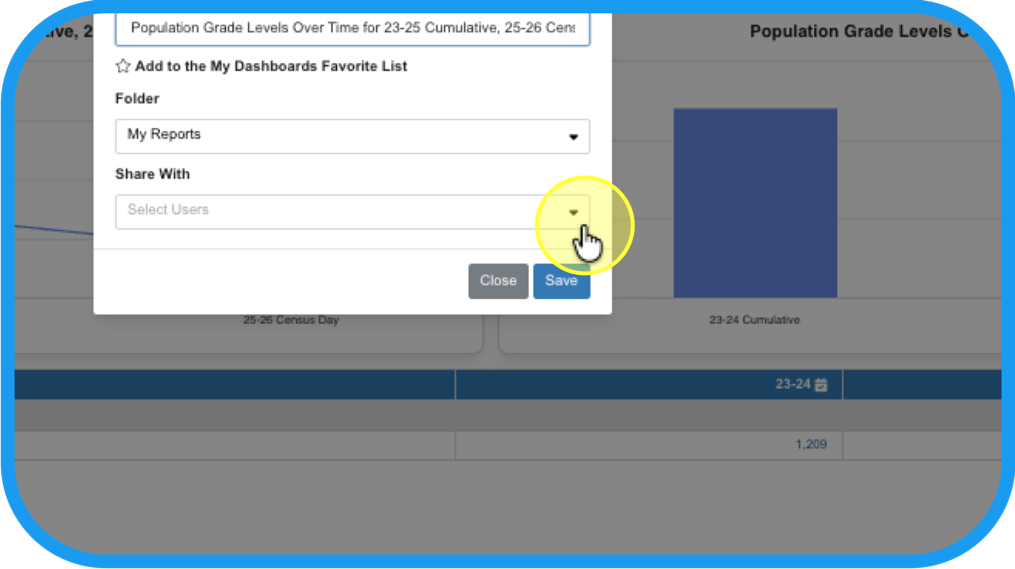
and sharing it with the specific users or user groups you have set up; Ex. C&I Dept.
Step 20
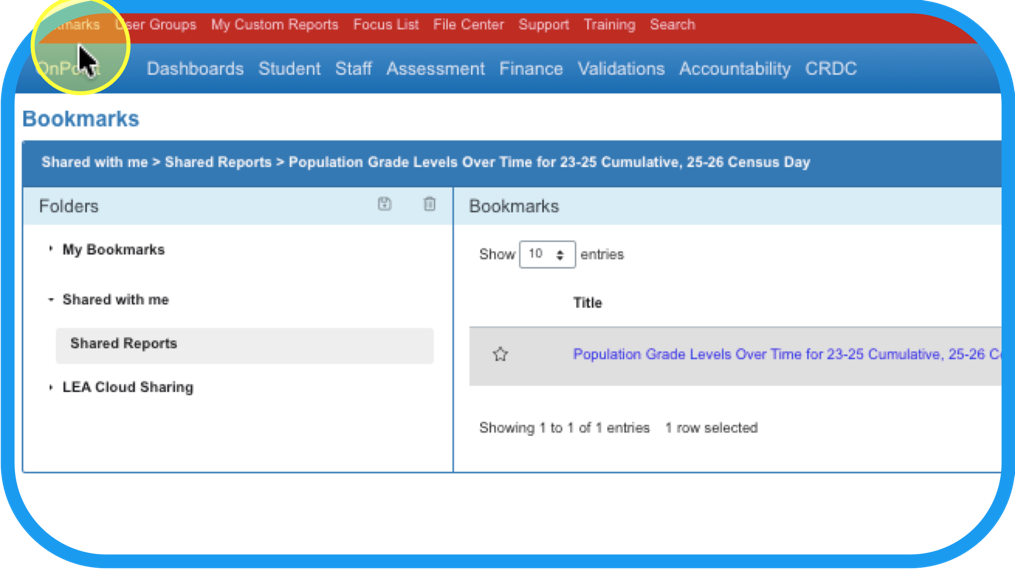
It will appear in their Bookmarks, under Shared with me.
Step 21
The user or user group whom you shared with, will also be notified by email!